
.png)


 30
30
GROUPS
Groups are a great place to start when managing your users. Starting with clear expectations about what the different roles your users will have in your portal will keep things running smoothly. Organizing your users into groups with clearly defined limitations and permissions ensures that your users are never stuck trying to find something they don't have access to, and you won't have to spend time re-sorting them in an already busy workday.
HOW DO THEY WORK?
Groups help you control who has access to different parts of your portal. By creating a group, you can add content to the portal, add or edit users, or view reports. For example, if you want some people to be able to view files on your Digital Asset Management page but not add or edit those files, simply create a group with only that permission. GZ Learn even allows you to permit a group of users to add content but not delete it, so you don't have to worry about anyone accidentally deleting an important document. This is why Groups are such an important part of onboarding and managing your users.
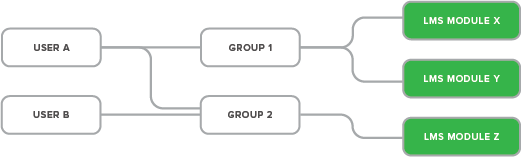
EXAMPLE A: USING GROUPS TO ASSIGN LMS MODULES
- Group 1 has access to LMS Module X and LMS Module Y, and Group 2 only has access to LMS Module Z.
- User B has been assigned to Group 2, allowing them access to only LMS Module Z, while User A has been assigned to both Group 1 and Group 2, giving them access to all three learning modules.
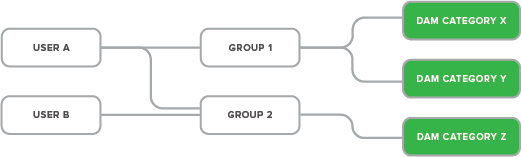
EXAMPLE B: USING GROUPS TO ASSIGN ASSETS IN DAM CATEGORIES
- Group 1 has access to assets in DAM Category X and DAM Category Y, and Group 2 only has access to assets in DAM Category Z.
- User B has been assigned to Group 2, allowing them access to only the assets in DAM Category Z, while User A has been assigned to both Group 1 and Group 2, giving them access to all assets in all three DAM categories.
ADDING GROUPS
If your LMS is integrated with GrowthZone, most groups will be automatically created based on their origin (list/committee, event, membership type(s), and/or store purchases). You can also manually create non-synced groups if needed.

